
Streamline License Management with Service Plan ID-Based Dynamic Groups in Entra ID
Managing user licenses and group memberships across multiple Microsoft 365 tenants can quickly become a time-consuming administrative burden. What if you could automate this process and ensure your security policies automatically apply to the right users based on their license assignments? Enter dynamic groups based on service plan IDs, a powerful feature that transforms how MSPs and enterprise administrators handle license-based access control.
What Are Dynamic Groups?
Dynamic groups in Entra ID (formerly Azure AD) are security groups that automatically update their membership based on predefined rules. Unlike static groups where you manually add or remove members, dynamic groups continuously evaluate user attributes and adjust membership in real-time. This automation ensures your groups always reflect current user states without manual intervention.
Why Use Service Plan IDs?
Every Microsoft 365 service or license comes with a unique service plan ID, a GUID that identifies specific features within a license bundle. For example, when you assign a Microsoft 365 E3 license to a user, they actually receive multiple service plans, each with its own ID. By targeting these IDs, you can create precise, license-based groupings that align perfectly with your security and compliance requirements.
Creating Your First Service Plan ID Dynamic Group
Let's walk through the process of creating a dynamic group for users with Defender for Business licenses.
Step-by-Step Configuration
1. Access Group Management
Sign in to the Azure portal with administrative credentials
Navigate to Microsoft Entra ID > Manage > Groups > New group

2. Configure Basic Settings
Set Group type to Security
Enter a descriptive Group name (e.g., "DYN-Defender-for-Business-Users")
Add a clear Group description explaining the group's purpose
Select Membership type as Dynamic User
Click Add dynamic query
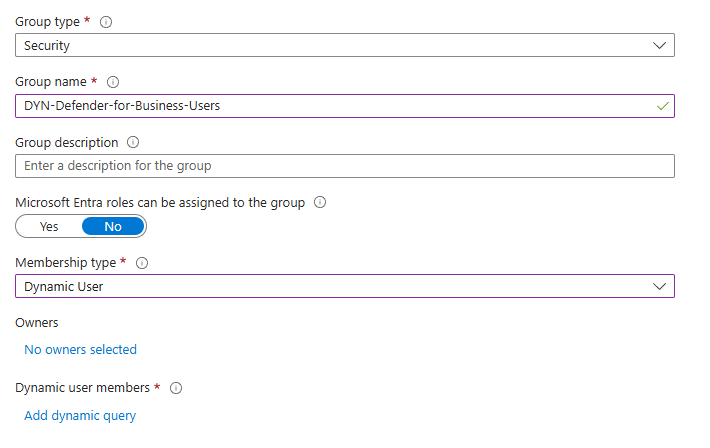
3. Build Your Dynamic Rule In the Dynamic membership rules blade, select Advanced rule and enter:
(user.assignedPlans -any (assignedPlan.servicePlanId -eq "bfc1bbd9-981b-4f71-9b82-17c35fd0e2a4" -and assignedPlan.capabilityStatus -eq "Enabled"))
This expression checks if users have the Defender for Business service plan ID assigned and enabled.
4. Validate and Create
Click Save to preserve your expression
Click Create to finalize the group
Within minutes, the group will populate with matching users
You can verify membership by navigating to Entra ID > Manage > Groups > [your group name] > Members.
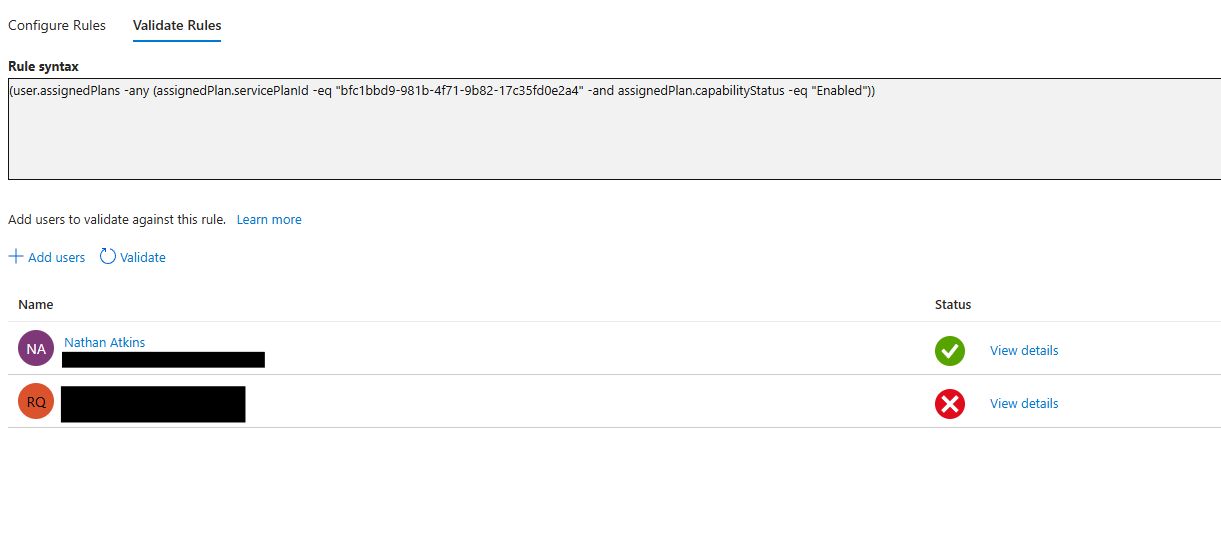
Advanced Scenarios: Multiple License Conditions
Need to create a group for users with either Entra ID P2 or Defender for Business? Simply combine service plan IDs using the -or operator:
(user.assignedPlans -any (assignedPlan.servicePlanId -eq "bfc1bbd9-981b-4f71-9b82-17c35fd0e2a4" -or assignedPlan.servicePlanId -eq "eec0eb4f-6444-4f95-aba0-50c24d67f998" -and assignedPlan.capabilityStatus -eq "Enabled"))This flexibility allows you to create sophisticated grouping logic that matches your organization's licensing structure.
Common Service Plan ID Reference
Save time with these frequently used service plan IDs:
Entra ID P1: 41781fb2-bc02-4b7c-bd55-b576c07bb09d
Entra ID P2: eec0eb4f-6444-4f95-aba0-50c24d67f998
Microsoft Intune: c1ec4a95-1f05-45b3-a911-aa3fa01094f5
Defender for Business: bfc1bbd9-981b-4f71-9b82-17c35fd0e2a4
Exchange Online Plan 1: 9aaf7827-d63c-4b61-89c3-182f06f82e5c
Exchange Online Plan 2: efb87545-963c-4e0d-99df-69c6916d9eb0
Best Practices for Implementation
Naming Conventions Matter: Adopt a consistent naming scheme across all tenants. Consider prefixes like "DYN-" for dynamic groups to distinguish them from static groups at a glance.
Document Your Groups: Always include clear descriptions that explain the service plan ID being targeted and the group's intended purpose.
Test Before Deploying: Create test groups in non-production environments to validate your expressions before rolling out across customer tenants.
Monitor Group Membership: Regularly audit dynamic groups to ensure they're populating as expected, especially after license changes.
The Bottom Line
Service plan ID-based dynamic groups transform license management from a reactive, manual process into a proactive, automated system. For MSPs managing multiple customer tenants through platforms like Inforcer, this approach delivers consistency, reduces administrative overhead, and ensures security policies automatically align with license entitlements.
By investing time upfront to build these automated groups, you create a scalable framework that adapts to licensing changes without constant administrative attention, freeing your team to focus on higher-value security initiatives.