
CDX Tenants
Microsoft Customer Digital Experiences (CDX)
Microsoft have been very nice to MSP’s by providing to us through the Microsoft Partner portal, access to a demonstration tenant that is configured with an admin account as well as some dummy users.
Once your baseline is built you can connect a spare device or use a virtual machine to enrol into this tenant and test the policies in your baseline without worrying about impacting live users.
This gives you a strong understanding of how and where you’ll see the impact from the policies you are deploying.
CDX Tenant Creation
1. To setup a CDX tenant, you need to go to https://CDX.transform.microsoft.com

2. Click on My Environments and select Create Tenant

3. The only option you’ll have to choose from is a 90 day tenant*. 1 year tenants are currently not available.
Select your region location. Try and choose a location that’s closest to you geographically.
*Note at the time of writing is that Microsoft seems to be auto extending the time that these live for. Just be aware your mileage may vary
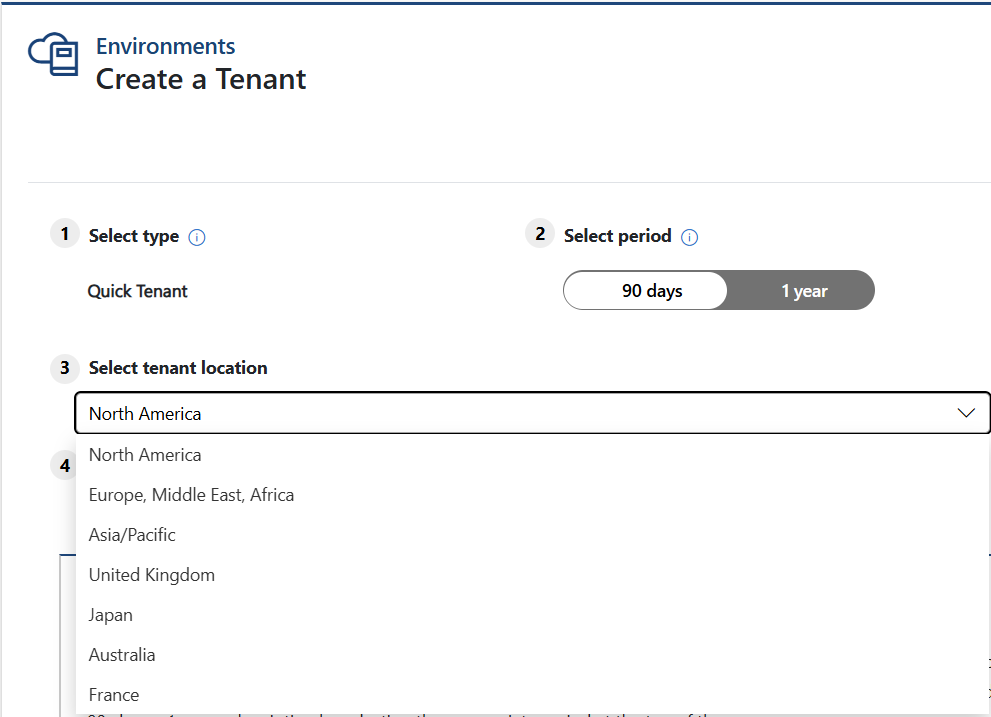
4. Next, you’ll have to chose a content pack, For Australia, EMEA and UK regions the only option we have is the Microsoft 365 Enterprise Demo Content. Which is comprised of an E5 License.
US customers do have a business premium content pack to choose from as well as the Enterprise content pack.
Functionally there is no real difference apart from the license SKU that’s attached to the tenant. I suggest for latency benefits your region and the enterprise content pack will be great for testing purposes.


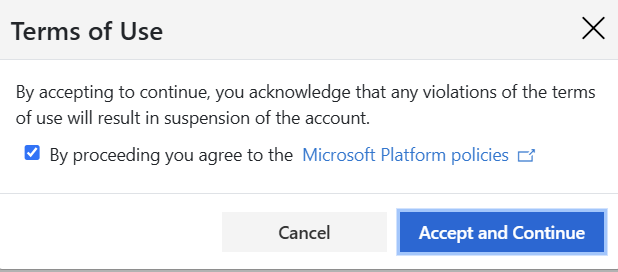
5. Once you’ve selected the content pack you want to deploy, click “Create Tenant”, accept the terms of use and your tenant will then be built.

Using the Tenant for Testing
You can then use the credentials that are shown in the environment window to use for testing policies or applications for anything you would want to deploy